Magnetic Copper: Resistance is High…

Just kidding, we all know copper isn’t magnetic, mild steel on the other hand is most certainly magnetic and has the fun property of a much higher resistance than copper. And with steel being considerably cheaper, it’s no surprise that copper clad steel has been finding it’s way into a lot of electronic products lately. At least I have a new way to hang up my jumpers now, here is one stuck to a magnet on the wall:

So I purchased a pack of alligator jumper wires from a seller on eBay some time ago. They come in handy for a lot of things and I’m sure you’d be hard pressed to find an engineer or hobbyist who doesn’t have at least a few laying around.  I tend to use them for quick connect of power, switching loads in and out of a circuit or measuring a voltage with the multimeter when I want my hands free.

The trouble (and discovery) all started when I was attempting to source about half an amp from a series pair of 1.5v batteries using a very capable 10 Amp boost converter. I had two wires in series with the batteries, one to positive and one to ground, for a combined total of  2 ohms. Not terribly much until you look at the math (V = iR) and find your dropping a volt from an already stressed pair of batteries. This additional resistance put the source voltage under the boost converter’s minimum startup voltage. The problem wasn’t immediately visible as I was measuring the voltage directly across the batteries and not at the input of the boost converter.
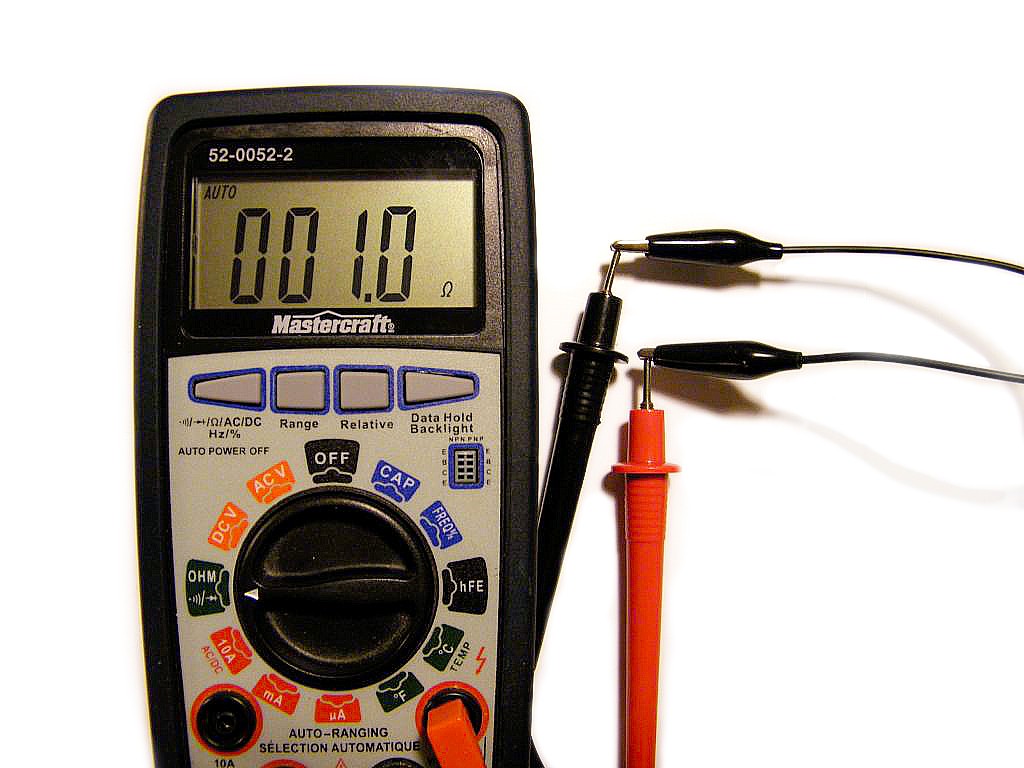
There were also two jumper wires connecting the load, a 3w 260 lumen white LED mounted on an old VGA chip cooler. Here the added resistance limited the current to about 500mA. The LED was rated for about 1 Amp.

This isn’t the first time I’ve crossed tracks with copper clad steel in non-ideal situations. Not more than a few months back a friends replacement laptop brick died. It turned out the AC plug had a one shot fuse built in. While replacing the plug end, the bare wire was  really springy, like nylon fishing line and it wouldn’t hold a twist. It could be bent, but it would never hold it’s shape like normal copper. At the time I didn’t record the resistance but with measurement, we figured there must have been a couple of watts of dissipation under normal operating conditions. I did however get a couple of pics at 200x, here’s a close up of a single strand of the wire:

The next picture is the stripped jumper wire at 20x magnification, it looks a lot like normal copper wire from the outside:

And the same jumper wire at 200x magnification, it’s awfully smooth and round, perhaps that’s a clue to it’s metallic composition:

For comparative purposes here is some oxygen free pure copper speaker wire, I can tell it’s pure copper from the sound alone:

And for further reference, here is some solid core copper phone wire, it’s definitely not oxygen free, just look at those voids. It’s no wonder the phone quality was bad, I can just imagine the sound molecules bouncing off those giant voids!!

So there you have it, be on the look out for this mystery material, under certain circumstances it can be quite a load of fun or a complete headache…
DC Servo: In a State of Motion…

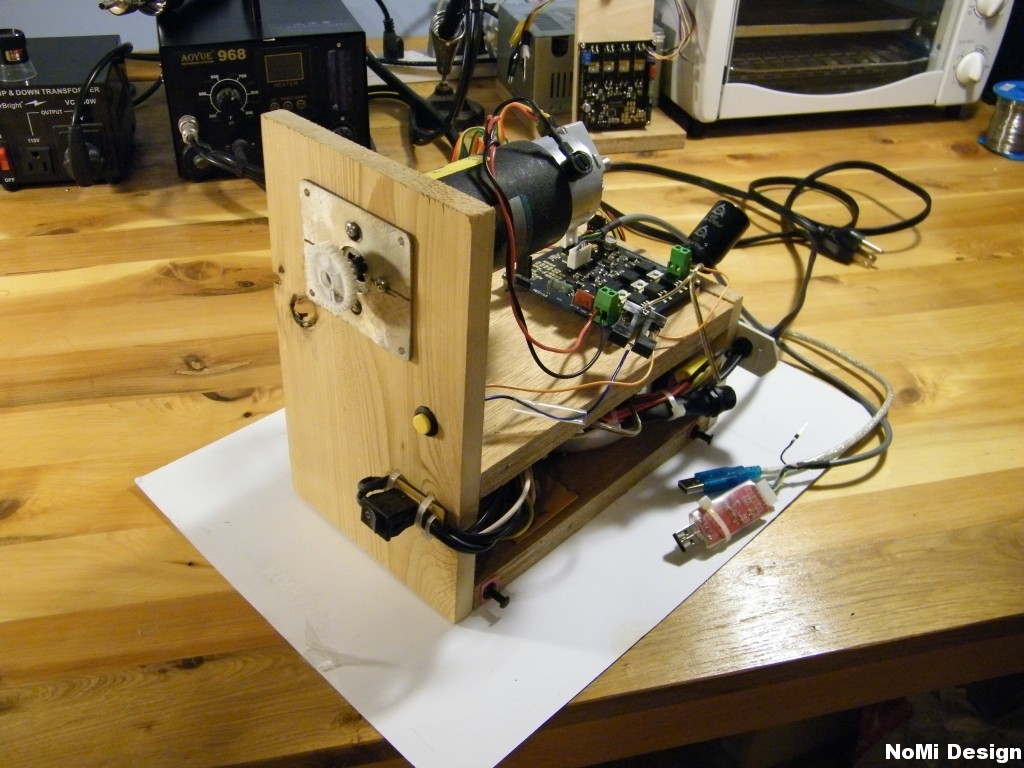
Software and hardware development have converged into a practical test platform. The encoder processing loop has been converted to fast inline assembly and released under GPL.  And in the following image, the test platform, consisting of a brushed servo motor, a power supply and a controller was assembled to facilitate rapid software development, research and testing.

The Motor and Power specifications of the test platform are as follows…

Electrocraft E543 Power Supply
  • Terminal voltage: 45 V
  • Continuous speed: 4000 RPM
  • Peak Torque: 1.270 Nm (180 oz-in)
  • Peak Current: 12 Amps
  • Continuous Current 4.1 Amps
  • Continuous Torque: 0.380 Nm (54 oz-in)
  • Encoder Type:  1024 PPR Aligent QEDS-5945
  • Main Supply: 300 VA Toroid
  • Supply Open Voltage: 34 V
  • Bulk Capacitance: 3x 4700 uF
  • Mosfet Regulator: TPS5420
  • Mosfet Drive Voltage: 12 V
  • Logic Regulator: TPS5420
  • Logic Voltage: 5 V

Another view showing the back of the motor, the encoder and the drive. The power supplies and some bulk capacitance are tucked safely inside the box.
The Controller and Software specifications of the test platform are as follows…

Controller Software
  • Logic: Atmega328 TQFP @16Mhz
  • Programmer: NewTC ICSP
  • Serial Coms: MAX323 & CP2102
  • Gate Drive: IR2184 @ 12v
  • Mosfets: IRF540 SMD
  • MCU IDE: AVR Studio 4.19 build 730
  • MCU Languages: GCC & Inline ASM
  • Tuning Software IDE: Processing
  • Tuning Software Language: JAVA

And finally, that brings us to the tuning software being developed in the Processing environment. Visual tuning method is achieved by introduction of a 200 step disturbance, the resulting action is captured in SRAM with a 1kHz sample rate, passed forward through serial and plotted as position (upper) and velocity (lower).

As can be seen in the following image, the drive first overshoots and then settles out in just under 60 ms. In practical application, the possibility of such disturbance with infinite acceleration is null.

Some refinement of the PIV Algorithm is required to further reduce the settling time.  As well as practical experimentation to determine the least number of modifiable coefficients and reduction through coefficient relationships.  This is in effort to include the option of on-board tuning potentiometers, thereby greatly reducing setup complexity and setup time.

The software is to be released open source under GPL.  The kit will be designed for DIY (some assembly required).  The current hardware iteration can be found here: http://krazatchu.ca/wp/2011/11/19/nomi-locus-dc-servo-kit/

UPDATE January 2014

While this project has been on the back burner it is still alive and well.  The current version takes form as an Arduino Nano Shield as illustrated below.

Inline Assembly: A Fast Quadrature Decoder…

Inline assembly is a great tool to have in your programming arsenal. It gets things done as fast as a kitten chasing a hummingbird, yet retains the usability and portability of C code.

encoder

This bit will decode a quadrature input from a rotary incremental or linear position sensor,  it polls two inputs (PIND4 & PIND5) to convert the incoming grey code into respective direction and count, tallying the position in a signed 16bit variable.  It can be run on pinchange interrupt, timer interrupt, or called as a function. It also contains a provision for missed transitions.

Globally we have three declared variables, the current position and a couple of previous variables. As they will be modified inside the inline statement, we have declared them as volatile:

volatile int CurrentPosition;
volatile unsigned char PreviousEncoder;
volatile unsigned char PreviousDirection;

We also have a locally declared 16 bit variable, used for temporary storage during calculations. In assembly this would normally be handled by a pair of the x, y, z doubles:

unsigned int Zbuffer = 0; // setup a 16bit temporary local buffer

In standard inline form, the inputs and outputs are listed as the last bit, separated by colons. As zbuffer is a temporary variable it’s only declared in the output, but must be constrained to upper registers (r16 to r31) as it will be used with immediates. The input  uses the integer constraint while everything else is relegated to any available register. This allows for the compiler to have the most flexibility in assigning resources:

// Output
:  "=r" (CurrentPosition),   
   "=d" (Zbuffer),
   "=r" (PreviousEncoder),
   "=r" (PreviousDirection)                    

// Input
:  "I" (_SFR_IO_ADDR(PIND)),
   "0" (CurrentPosition),
   "2" (PreviousEncoder),
   "3" (PreviousDirection)

The original assembly was written by Chan of ElmChan, it was converted to inline and republished with permission under GPL. This code has been tested on a DC Servo sporting a Mega8 @ 16Mhz, running inside a timer interrupt at 100 kHz. No registers were harmed in the making of this code. Finally without further NOPs, here is the complete code:

unsigned int Zbuffer = 0; // setup a 16 bit temporary local buffer

asm volatile(
// incoming stack maintance is handled by compiler

"mov    %A1, %2     nt"    // Store previous encoder in low buffer
"in     %2,  %4     nt"    // Input encoder state PORTD 0b00xx0000
"swap   %2          nt"    // Swap nibbles 0b76xx3210 -> 0b321076xx

"ldi    %B1, 1      nt"    // Load 1 into high buffer
"sbrc   %2,  1      nt"    // Skip next instruction if bit 1 is clear
"eor    %2,  %B1    nt"    // Exclusive OR, ENC = 1x, if 10 -> 11, if 11 -> 10

"sub    %A1, %2     nt"    // Subract previous from 11 or 10, store in low
"andi   %A1, 3      nt"    // AND with 11 - check if bits have changed
"breq   exitpoint   nt"    // If equal, no change, jump to exit

"cpi    %A1, 3      nt"    // Compare low buffer to 0b00000011
"breq   decrement   nt"    // If equal jump to decrement 

"cpi    %A1, 1      nt"    // Compare low buffer to 0b00000001            
"breq   increment   nt"    // If equal jump to increment

"mov    %A1, %3     nt"    // No branch = lost in transistion
"mov    %B1, %3     nt"    // Use previous direction to make up lost bit
"lsl    %A1         nt"    // Logical left shift = x2 - double up for lost bits
"asr    %B1         nt"    // Clear and save signed flag
"rjmp   summation   nt"    // Jump to total

"decrement:         nt"    
"ldi     %A1, -1    nt"    // Load low buffer with -1
"ser     %B1        nt"    // Set high buffer for negative number = 0xFF
"rjmp storeprevious nt"    // Jump over/skip increment

"increment:         nt"    
"ldi     %A1, 1     nt"    // Load low buffer with 1
"clr     %B1        nt"    // Clear high buffer

"storeprevious:     nt"      
"mov     %3,  %A1   nt"    // Store the previous direction in low buffer

"summation:         nt"    
"add     %A0, %A1   nt"    // Add low byte and carry to high
"adc     %B0, %B1   nt"    // This becomes the 16bit variable CurrentPosition

"exitpoint:         nt"    // final destination

// outoging stack maintance is handled by compiler....

// Output
:  "=r" (CurrentPosition),   
   "=d" (Zbuffer),
   "=r" (PreviousEncoder),
   "=r" (PreviousDirection)                    

// Input
:  "I" (_SFR_IO_ADDR(PIND)),
   "0" (CurrentPosition),
   "2" (PreviousEncoder),
   "3" (PreviousDirection) 

// Clobber
:  // nothing to clobber                                                

);

An example application and the current test platform is the DC Servo kit

Catching some ZZZs, Part 1: Interrupted Sleep

So you finished your lastest Arduino project, hooked up a 9volt battery to the VIN and stuck the whole thing into a project box. You come back a few hours later and the Arduino is not working and the battery is dead. So what went wrong?  This is where you need to start thinking about energy saving, low power modes, and sleep states. In this multi part series we will explore various aspects of the avr lib sleep library, and even some hardware optimizations to save you power and keep your project running, and running.

Part 1: Interrupted Sleep

Interrupted Sleep on the Arduino is conceptually very similar to how most of us are woken up each morning. An event occurs, your alarm clock rings, the sun rises, your cat sits on your face, then you wake up. Usually though you will want to be woken up by a specific moment or event. So for example if you are staying at a hotel you might arrange for a wake up call before you sleep. This is exactly like setting an interrupt before the Arduino sleeps. We are jumping ahead though, the very first step is to actually fall asleep. So here is how its done.

So putting your Arduino into a sleep state that can only be woken up with an interrupt (a button press for example) is simple, it just takes a few lines:

At the top of your sketch include the avr-lib sleep.h file.

#include <avr/sleep.h>

The next thing to do is at the bottom of your sketch, add a sleep handler function, or ISR (interrupt service routine). In other words this is the function (routine) that is called after (to service) the hardware interrupt. So just remember this function is called when your Arduino wakes from sleep. It can usually be left blank, unless you need something to be updated right away. Like setting a boolean state, or incrementing a counter.

void sleepHandler() {
}

After the interrupt handler code is done, we should write the code that actually makes the Arduino sleep. This part is easy. Somewhere in your loop function, first call:

  set_sleep_mode(SLEEP_MODE_PWR_DOWN);

What this does is sets the type of sleep mode we want to use. There are 6 different modes, with varying degrees of energy saving. In the line above I chose, SLEEP_MODE_PWR_DOWN, Which saves the most energy and turns of almost all systems in the Atmega. Some others you might use are SLEEP_MODE_IDLE, which is the lightest sleep, and SLEEP_MODE_PWR_SAVE. Which is a nice medium amount of energy saving. I will skip the details here, but you can read about which systems and timers are being deactivated in each mode in the datasheet.

After setting the sleep mode, we want to set up the interrupts to wake up the AVR from sleep. If we didn’t do this step the AVR would never wake up.

interrupts();
attachInterrupt(0,sleepHandler, FALLING);

These lines are standard Arduino code. The first one turns on interrupts. This is important because if you deactivated them in some other part of your code and forgot, the interrupt would never be triggered and your Arduino won’t wake up. So its best to just make sure. Next we call the attachInterrupt function which sets up our sleepHandler() function as the ISR. Please refer to the Arduino Reference if you are not familiar with how this works. The next step is to actually set the AVR into sleep mode. With the following Line:

sleep_enable();

What this does is the chip is now in sleep mode, but its not yet asleep. In other words its ready to sleep but it hasn’t actually started sleeping.

Then the AVR finally sleeps:

sleep_mode();  //sleep now

The syntax here is kind of weird. Sleep_mode() doesn’t seem like a command to make the AVR sleep, but it is. This is how its done. I wouldn’t have named the command this myself, but that the way its written.

So now the Arduino is totally asleep, and this could go on until the battery dies, which could be weeks, or months. Unless….Something triggers the interrupt! It could be a button, a sensor value, anything that is attached to our interrupt pin. When that happens, the sleepHandler() function or ISR we wrote earlier is called. After the code inside the sleepHandler() function is done (if you even put code in there). The program will continue running from just AFTER the sleep_mode() function call you made before the chip went to sleep. So the very next thing you should do is actually have the chip fully wake up and disable sleep mode.

sleep_disable(); //fully awake now

After that you can execute any code you want….Then the loop() function will end, and the whole process will start over again from the beginning. So if you are not completely asleep by now, my article has been a total failure!

So here is the whole thing altogether:

#include <avr/sleep.h>

void setup(){       //setup something }

loop(){

  //do stuff

  set_sleep_mode(SLEEP_MODE_PWR_DOWN);  
  sleep_enable();
  interrupts();
  attachInterrupt(0,sleepHandler, FALLING);
  sleep_mode();  //sleep now
  //--------------- ZZZZZZ sleeping here
  sleep_disable(); //fully awake now

  //do more stuff

}

void sleepHandler() {

}

One more thing…this post needs to be read with a word of warning. Even though the Atmega chip on your Arduino is completely asleep in full Power down mode, the Arduino is still a power hog! Why? Because of the FT232RL USB chip  (or the ATmega8U on the UNOs) . The only way to truly save power on your Arduino is to also power down your FT232RL or ATmega8U. Which can’t be done without rewiring your Arduino, or making your own. Also there is one other source of major power loss on your Arduino and thats the linear regulator. However if you were to bypass your regulator, and power down your ft232RL these programming tricks will push your Arduino into battery run times in the range of weeks, months, or even years! In part 2 we will talk more about how to optimize your hardware for energy saving.

How to: Testing an N-Channel MOSFET

If life hands you lemons, you’d better test them to make sure they are lemons.  Here’s a few handy steps for testing the magic smoke containment system of N channel MOSFETs…

1) Measure resistance between source and drain, it should be infinite.

2) Apply a charge between the source and the gate. A DMM on diode mode may source 4 volts.  Some DMMs only source 1.5v and that’s only enough for logic level FETs. Analog multimeters will often source quite a bit more. Batteries are Ok too..

3) Measure resistance between source and drain, it should now be low.

4) You can discharge the gate with your finger to repeat the process.

 As a final test, if the FET has totally wrecked itself, it will conduct between source and gate. If it beeps, it’s headed for the bin…

Capturing: Fuji S2000HD IR Codes…

Sometimes all the searching in the world won’t find you what your looking for.  This being the case with the shutter IR trigger codes for the Fuji S2000HD digital camera. 

The Fuji S2000HD utilizes the well documented NEC IR protocol. Luckily I had some TFM5360 IR receivers in my parts bin and with a quick bit of soldering, an Arduino IR shield was born. An IR LED was added for retransmission and testing.

Using the stock example program IRrecvDump from Ken Shirriff’s excellent Arduino IR remote library we can capture both decoded, recognizable codes as well as the raw timing data for non-standard and propriety IR codes.  Without further _delay(ms); here’s the data:

  • 0xD30C817E : Shutter
  • 0xD30C41BE : Play
  • 0xD30C11EE : Back
  • 0xD30CE11E : Menu
  • 0xD30CC13E : Up
  • 0xD30C21DE : Down
  • 0xD30C619E : Left
  • 0xD30CA15E : Right
  • 0xD30C916E : Feature

For information on using these codes with your camera trigger, see the TriggerTrap website.

NoMi Locus: DC Servo kit…

NoMi Design has been hard at work creating a CNC capable DC Servo Motion Controller.
Based on an earlier design for the “Topology of Dubai” project, the new drive combines an easy to assemble through-hole kit paired with smarter software and an expansion port for increased functionality. Measuring in at just 85 by 50mm, it may be small but this contender is no lightweight.

Power Side Specifications:

  • 200 Watt capable H-Bridge output
  • Up to 90 volts and 8 amps
  • Single power source for under 36v
  • On-board 12v power regulation
  • On-board bulk capacitance
  • zobel network protection
  • Fast fly-back diode protection
  • L6384 gate drivers with deadtime

Logic Side Specifications:

  • Atmega8/88 MCU @ 16Mhz
  • Fast, hand coded assembly loops
  • On-board 5v power regulation
  • Stack-able expansion header
  • 6 Pin serial header for tuning
  • Twin Status LEDs

To do list:

  • Add potentiometers for PID tuning
  • Design Arduino interface shield
  • Design RS485/DMX network shield

RS485/DMX512 multi-drop network stackable expansion shield shown on left.

Previous design viewable at http://krazatchu.ca/wp/2009/05/31/dc-servo-drive/

These kits will be on sale here in a few months time. Some soldering required, batteries not included. Not suitable for voltages under 12…

The latest information and a progress update are now online here: http://n0m1.com/2011/12/31/dc-servo-in-a-state-of-motion/

Arduino Serial Graph

Here is a simple bit of Arduino code that is handy for testing analog sensors.
It will fill the screen with a scrolling graphic representation of the sensor value. In the video that follows, an ambient light sensor (TEPT4400) in a resistive divider is displayed. After drawing the “0” it fills the remaining space with “.” such that the output is displayed in constant time. Anything faster than 38400 caused stuttering in the display from buffer overflow.

// SERIALgraph
// by krazatchu of n0m1.com

int sensorValue = 0;       

void setup() 
  {
  analogReference(INTERNAL);
  Serial.begin(38400); 
  }

void loop() 
  {
   sensorValue = analogRead(A0) /8;            

  for (int i=0 ; i <=  sensorValue; i++)
    {
    Serial.print("0" );                       
    }

  for (int i= sensorValue; i <=  128; i++)
    {
    Serial.print("." );                       
    } 
 
  Serial.println(" ");

}