Shake, Rattle & Roll: The MMA8453Q & Arduino

So we finally finished putting the polish on our latest Arduino library designed for use with the MMA8453Q Accelerometer and its siblings the MMA8451 and MMA8452.  This library gets you going with the basics on this accelerometer and it also allows you to dig in a little deeper in to some of the advanced features, like motion detection and shake detection without much effort.  This little QFN chip is not only cheap but its packed with 3 Axis’ of flavorful features.  It’s on board 10 bit ADC coupled to the I2C interface means fast and accurate 3 axis measurements as well as built in free fall, pulse and jolt detection on programmable interrupt pins.  As illustrated below, it’s a 3.3 volt part requiring additional level shifting to interface a 5 volt Arduino, this can be accomplished with a logic level N channel FET and a schottky diode:

So lets first get the library setup.  Go ahead and download n0m1-MMA8453  it.  The next thing you will need to do is download the wonderful and necessary i2c master library which our library depends on.  This library is not only faster then the regular Arduino Wire library, it also follows the proper I2C specifications and allows for the sending of a repeated start bit which is required by the MMA845x family.  So after you got both those libraries downloaded place them in your Arduino Libraries folder, and we are ready to get started.

When you fire up your Arduino app you will notice a new set of 4 examples in your examples menu.  The first example we will take a look at is the ultra simple DataMode example.  When you up up this sketch you will see right away just how simple it is, lets break it down anyway though, just in case.

At the top you will see the include of the library and its dependency library, the i2C lib, and the instantiation of the accel object.

#include 
#include 

MMA8453_n0m1 accel;

In the setup function, you call the function dataMode to set the accelerometer into raw data output mode.  This function has 2 parameters.  A boolean, which is true for high resolution mode (10bit), and false for low resolution mode (8bit).  The next parameter is to set the range of gravitational force the accelerometer will be sensitive to.  These values, are +/-2g(waving your project around in your hand), +/-4g(your drag racing project), or +/-8g(your atmosphere re-entry vehicle project).

accel.dataMode(true, 2);

After that there is almost nothing left to do.  Just call the update function at the top of your loop, which retrieves the latest values from the accelerometer, then use those values however you feel.

accel.update();

Serial.println(accel.x());
Serial.println(accel.y());
Serial.println(accel.z());

Well that’s it! Expecting some fancy complex gravitational voodoo, matrix math or pointer arithmetic? Sorry to disappoint.  I’ll try to step it up a little in the next example then…however there’s a good chance it will be almost as simple.

How to: LED as a Light Sensor

LEDs LEDs LEDs, is there anything they can’t do?  Besides adding that special crunchiness to smooth peanut butter, they also make awesome light level sensors.  Here’s one way to do it that doesn’t require an analog input, just connect the LED across two digital pins like this:

We’re going to treat the LED as a small light dependent capacitor, we charge it up and then time how long it takes to discharge, super simple! Here’s the pseudo code we will implement:

  1. Light up LED (Positive to Anode & Negative to Cathode)
  2. Charge Capacitance (Negative to Anode & Positive to Cathode)
  3. Switch Cathode to Input and Disable Internal Pullup Resistor
  4. Capture the Start Time
  5. Wait until Cathode Input Becomes Low
  6. Capture the Stop Time and Compute the Difference

Putting this into action on the Arduino platform and experimenting with light levels revealed that it takes about 6 ms in bright light for the LEDs capacitance to discharge.  And up to 5 seconds in complete darkness.  If that’s too slow for your application, you can use an analogue pin to measure the voltage drop for a short interval of time and integrate the result.  Here’s the bit of Arduino code used for detecting the light level and pushing it out over serial:

//Set LED Connections to Outputs
pinMode(5, OUTPUT);   // LED A
pinMode(6, OUTPUT);   // LED B

//Light up LED
digitalWrite(5, LOW) ;
digitalWrite(6, HIGH) ;
delay (100);

// Charge up Capacitance of LED
digitalWrite(6, LOW) ;
digitalWrite(5, HIGH) ;
delay (10);

// Switch Cathode to Input
pinMode(5, INPUT);
// And Disable Pullup
digitalWrite(5, LOW); 

// Capture Start Time
Start = millis();

// Wait Around Until it Discharges
while ( digitalRead (5) == 1) { } 

// Capture Stop Time
Stop = millis();

// Push the Difference up Serial
Serial.print ( Stop - Start );
Serial.println("");

Utilizing the alternative analogue method, reading the falling voltage and plotting gives the following capacitive discharge chart:

How to: A TriggerTrap GH1 Cable…

The above schematic illustrates how to wire the Panasonic GH1 to the TriggerTrap universal camera trigger.  The TriggerTrap uses an opto couple wired common cathode to isolate and protect the camera from nefarious events.  As the GH1 uses a 2.5mm 4 pole connector, a complete extension cable was sourced from eBay for $6.01 shipping included.  The cable was cut in half, with the unused half making it to the scrap bin for future projects.

The TriggerTrap side employs a 3.5mm 3 pole stereo connector, a suitable connector with a large body was located in the spare connectors bin, the other connectors were sad to see it go but that’s how it is in spare parts land.  The first attempt, as seen below proved to be too fragile, a bit of flexing and the pads pulled off the 3216 size SMD resistors:

Potting in rigid epoxy was considered but the idea was abandoned when the epoxy could not be located, some speculate it ran off with the water based flux, being hydrophilic and whatnot.  The SMD resistors were removed and the second and successful attempt used PTH resistors with small bits of heat shrink tubing but still managed to fit under the hood of the 3.5mm connector body:

The resistor values were selected from available stock, any similar values will also work.  And the final assembly appears to be nothing more than a simple cable, little does anyone know the hidden surprise that awaits beneath:

Supply Droop: Internal Resistance is Futile…

What causes a battery supply voltage to drop when the load increases? Internal resistance does, and while it’s normally around 0.2 ohms per alkaline cell, here is a bit of procedure if your keen to figuring it out yourself:

  • Measure open cell voltage at no load, record this as nominal voltage
  • Using a known resistive load, measure the voltage under load
  • Apply formula: (Nominal V – Loaded V) * (Load R) / (Nominal V)

And there you have it, an easy three step method to determine internal resistance.  For giggles I tested this bit of procedure on a new generic brand 9v battery with a 2.5 ohm power resistor as the load.  The experiment resulted in a calculated internal resistance of 1.7 ohms which is close to the expected 1.2 ohms.  A 9v battery is often assembled from 6 individual cells in series, so each cell would be about 0.28 ohms.  That’s pretty close to the 0.2 ohm per cell rule of thumb.

Voltage Drop = Nominal Voltage - (Load Current x Internal Resistance)

So what does this mean for your battery powered projects? In the case of high current drain applications like motors and power LEDs, one should consider the effective series resistance of the source and how it will cause the supply voltage to drop. For a known current consumption, use the above formula to figure out the drop.  Have fun…

ADC Battery Voltage: Divide, Match and Measure…

While the stock Arduino isn’t particularly well geared to running from a battery source, there are times it will be useful to know the status of our battery voltage.
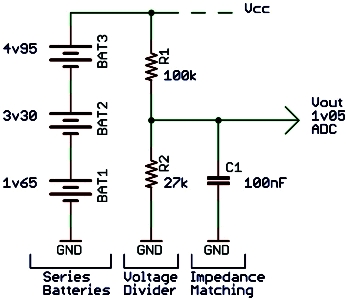
Using the circuit on the left as well as a bit of math, we will discover how to accurately measure the battery level.  But first a bit of preliminary information about batteries to get us started…


Alkaline Voltage Characteristics

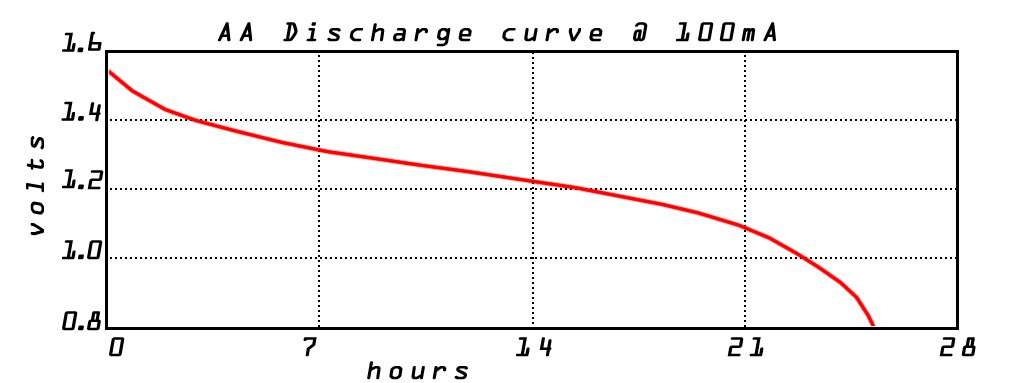
All battery chemistries have differing voltage characteristics.  For the purpose of this article, we will be considering standard alkaline batteries where the unloaded voltage can be as high as 1.65 volts per cell.  Utilizing three in series gives us a maximum combined output of 4.95 volts.  On the other side of the spectrum, when the unloaded cell voltage drops below 1.0 volt, more than 85% of the capacity has been relinquished.  For this reason we are most interested in the range from 3.0 to 4.95 volts or the per cell voltage range of 1.0 to 1.65 volts as can be seen on the discharge chart below:


Analog to Digital Converter Setup

The Arduino and most current microcontrollers have a built in, easy to use ADC.  To accurately measure a voltage using the ADC, we first need to specify a reference for comparative purposes.  As shown below, this is done in the Arduino with the analogReference(type) command.  The available choices depend on your Arduino, we will be using the internal 1.1 volt reference,  other reference choices can be found here.  It’s a very good idea to bypass the Aref pin with a 100nF capacitor (not shown) if not already done. Here’s the setup code:

analogReference(INTERNAL);


Enter the Voltage Divider

As you might have guessed from the ADC setup, measuring the battery voltage is actually a comparison between the voltage on the analog pin and the 1.1 volt reference.  The reference voltage is the maximum and for this reason we don’t want to put any voltage higher than 1.1 volts on the analog input pin.  This is where the voltage divider comes in,  it scales the 3.0 – 4.95 v battery voltage to a lower range of 0.64 – 1.05 volts.  The math to calculate this uses the battery voltage and resistor values from the schematic at the top.  It can also be useful to express this equation in terms of R1 or R2 when selecting resistors:

Vout = (Battery Voltage x R2) / (R1 + R2)
R1 = ((R2 x Battery Voltage) / Vout) - R2
R2 = R1 / ((Battery Voltage / Vout) - 1)


Impedance Matching
& Power Consumption
While often overlooked, the most common source of ADC inaccuracy is from an impedance mismatch.  Simply put, the Arduino’s ADC input is expecting to see 10k ohms or less of resistance.  When there is more than 10k of input resistance, the Arduino’s own resistance starts to effect the measurement.  The combination of 27k and 100k resistors selected puts us well over the expected 10k impedance range.  We can lower our resistances but this will cause a larger power dissipation (P = V*V/R), not a great option for long battery life.  The easiest solution for slow changing signals is to add a 100nF ceramic capacitor (C1) to ground which will hold the voltage level while the ADC takes a measurement.


Taking a Measurement & Resolution that Counts

Returning to our measurement, this comparison produces a value out of the maximum resolution count, default being 10 bits or 1024 counts. Once we get our count we then work the math in reverse to determine what the battery voltage is.  Our measurement is taken with the command:

count = analogRead(analogPin);

The math to calculate the battery voltage depends on the full range (1024), the reference voltage as well as the ratio of the voltage divider resistances, first we figure out what Vout was at the time of measurement.  Then we use Vout to calculate the battery voltage, with the help of our resistive divider:

count = (Vout x maximum count) / Reference voltage
Vout = (count / maximum count) x Reference voltage
Battery voltage = Vout x ( R1 + R2) / R2
Battery v = (count x ref voltage x (R1 + R2))/(R2 x max count)


Putting It All Together

Making sense of it all, we have a final piece of code with a bit of massaging to improve our measurement quality.  Ideally we want to divide as little as possible as division leads to loss of resolution, hence we perform a composite rolling average and push the division to the end:

count = analogRead(analogPin);

Rolling = Rolling - ( Rolling /8 );
Rolling = Rolling + count;

BatteryVoltage = ((Rolling * 1397) / 276480) /8;

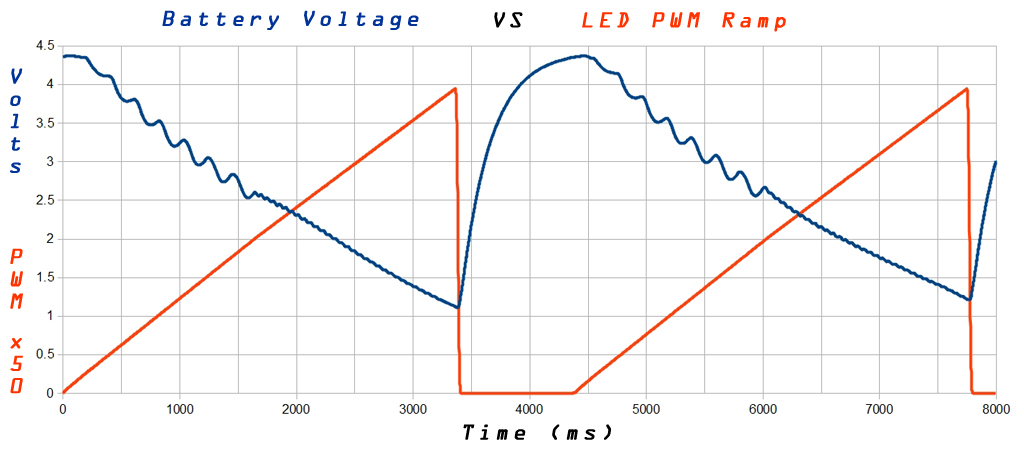
Finally in application, we have a pretty chart of the battery voltage dipping as a high power LED follows an incrementally increasing PWM duty cycle.  The LED is drawing up to 1.20 Amps through a switch mode boost converter while the battery supply dips to about 1.15 volts.  The supply droop is a result of the battery’s internal resistance, about 0.2 ohms per cell:

ColorBabel: Hue to RGB, do you copy?

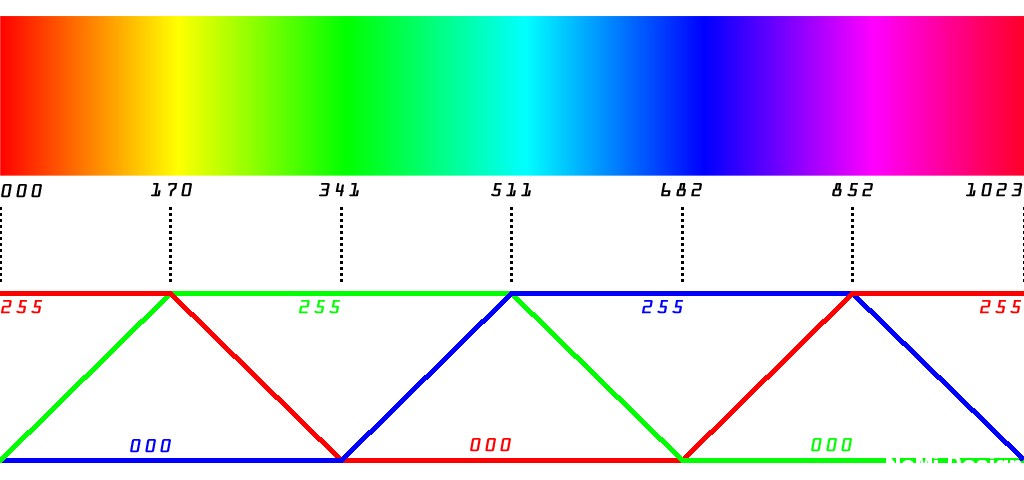
When talking in the color space one should speak lightly.  Illustrated here is a translation from 10 bit hue to discrete 8 bit PWM levels for red, green and blue LED drive on the Arduino platform…
The following code uses a case/switch to determine the operating sextant and set the corresponding color ramp values.  The upper map bounding values may be changed to limit the duty cycle as per the forward voltage characteristic of the LED and the supply voltage in application:

// prevent overflow with modulo 1024
ColorBabel = HueValue % 1024 

// determine the operating sextant using case switch
// and set output accordingly using map command

switch (ColorBabel) {

	case 0 ... 170 :
		Green = map (ColorBabel, 0, 170, 0, 255);
		Red   = 255;
		Blue  = 000;
	break;

	case 171 ... 341 :
		Green = 255;
		Red   = map (ColorBabel, 171, 341, 255, 0);
		Blue  = 000;
	break;

	case 342 ... 511 :
		Green = 255;
		Red   = 000;
		Blue  = map (ColorBabel, 342, 511, 0, 255);
	break;

	case 512 ... 682 :
		Green = map (ColorBabel, 512, 682, 255, 0);
		Red   = 000;
		Blue  = 255;
	break;

	case 683 ... 852 :
		Green = 000;
		Red   = map (ColorBabel, 683, 852, 0, 255);
		Blue  = 255;
	break;	

	case 853 ... 1023 :
		Green = 000;
		Red   = 255;
		Blue  = map (ColorBabel, 853, 1023, 255, 0);
	break;

        default: // Should never arrive here
        break;

}

// set PWM output for each color
analogWrite (GreenLED, Green);
analogWrite (RedLED  , Red  );
analogWrite (BlueLED , Blue );

Testing was performed on a one-off RGB Arduino shield. Utilizing a few resistors and some IRLML2402 logic level N-channel FETs as shown left.  Note the LED is actually common anode, the lower side is being switched and the polarity markings on the star are incorrect.  An external power supply is required as the USB port is limited to 500mA with enumeration…

RGB LEDs: Onstar Characterization…

Though incorrectly marked as common cathode, these common anode high power tri-color LEDs are standard fare across most discount parts websites, eBay included. They are sold with a 3W designation, each color drawing 350mA for a three watt total. Mounted on a star, they should be heatsinked with proper thermal paste if running for any extended period at normal operating levels.

Characterization at 350mA yields the following results:

Color Voltage Wavelength Lumens
Red 2.70 volts 625 nm 32 lm
Green 3.45 volts 530 nm 35 lm
Blue 3.30 volts 470 nm 12 lm

Running them in voltage mode with PWM will require careful attention to the maximum duty cycle value. Using PWM we calculate the maximum duty cycle with the equation (LED Voltage x Bits / Supply Voltage). The chart below indicates the maximum PWM value at some common bit resolutions when running from a 5 volt supply:

Color 8 bit (255) 9 bit (511) 10 bit (1023)
Red 138 276 552
Green 176 353 706
Blue 168 337 675

Staying under these maximum values on Arduino is greatly assisted by the Modulo operation and/or the map command:

// sets the redledpin as output
pinMode(redledPin, OUTPUT);

// Scale PWMoutput to achieve full range 0-183
// Using map(value, fromLow, fromHigh, toLow, toHigh)
PWMoutput = map (PWMoutput, 0, 255, 0, 183);

// Use Modulo to limit output
PWMoutput= PWMoutput % 183;

// Set output using analogWrite
analogWrite(redledPin, PWMoutput);

And finally a macro shot of all three chips, check out those awesome miniature crop circles:

LAVA Rainbow LED kit

 Assembly Instructions for LAVA LED Soldering Kit…

lava featured image


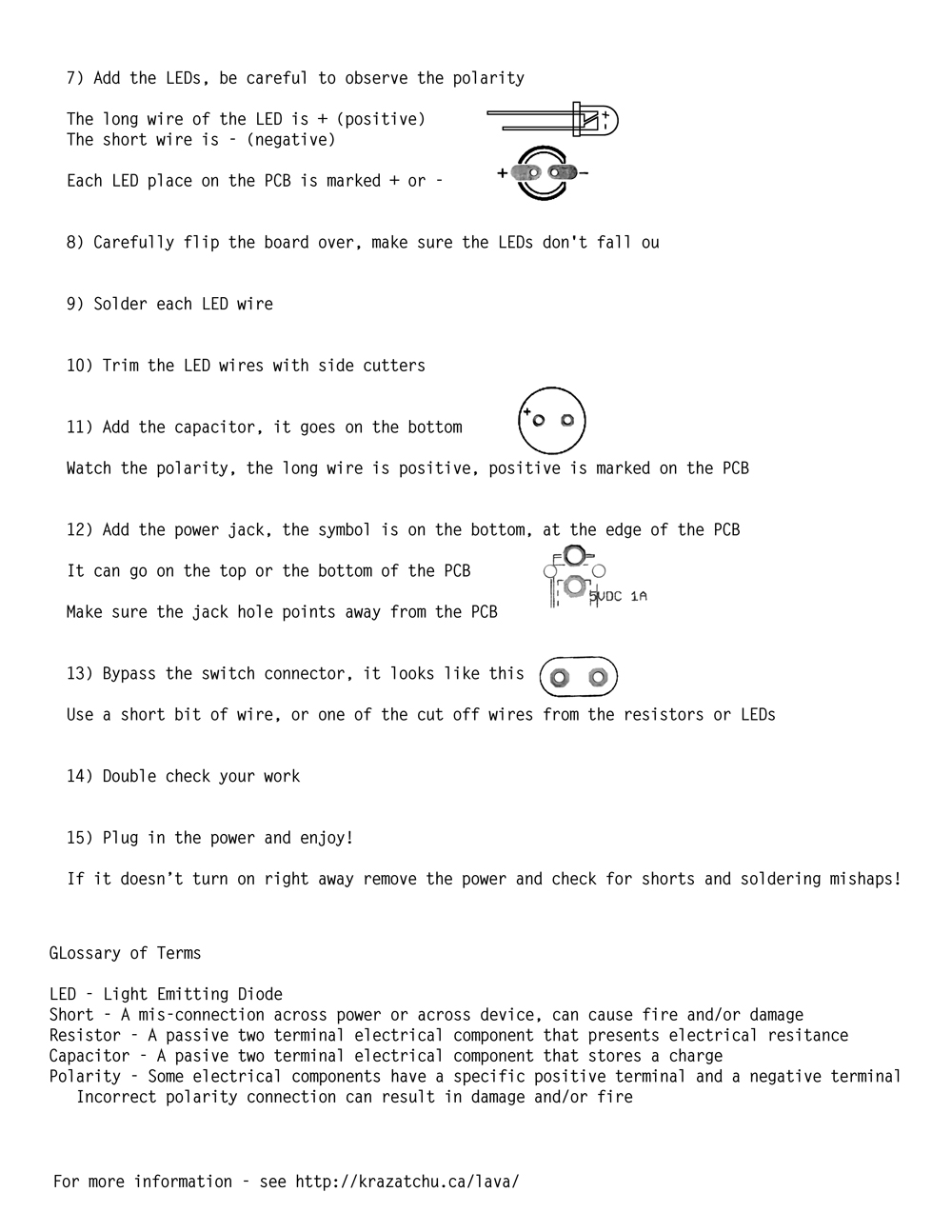
1page instructions

2page instructions